
The Format function in Visual Basic 2012 is a very powerful
formatting function. It is used to display the numeric values in various
forms. There are two types of Format functions, one of them is the
built-in or predefined format while another one can be defined by the
users.
(i) The format of the predefined Format function is
Format (n, “style argument”)
where n is a number.
The list of style arguments in Visual Basic 2012 is given in Table 15.1.
Table 15.1 List of style arguments
Example 15.1
Private Sub Button1_Click(ByVal sender As System.Object, ByVal e As System.EventArgs) Handles Button1.Click, Button5.Click, Button4.Click, Button3.Click
Label1.Text = Format(8972.234, “General Number”)
Label2.Text = Format(8972.2, “Fixed”)
Label3.Text = Format(6648972.265, “Standard”)
Label4.Text = Format(6648972.265, “Currency”)
Label5.Text = Format(0.56324, “Percent”)
End Sub
The Output window is shown below:
(ii) The format of the user-defined Format function is
Format (n, “user’s format”)
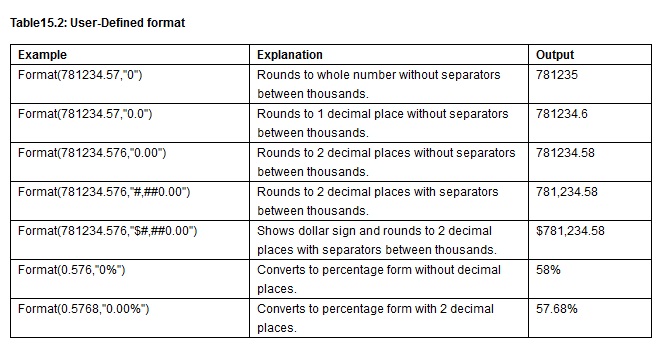
Although it is known as user-defined format, we still need to follows certain formatting styles. Examples of user-defined formatting style are listed in Table 15.2

Example 15.2
Private Sub Button1_Click(ByVal sender As System.Object, ByVal e As System.EventArgs) Handles Button1.Click, Button5.Click, Button4.Click, Button3.Click
Label1.Text = Format(8972.234, “0.0”)
Label2.Text = Format(8972.2345, “0.00”)
Label3.Text = Format(6648972.265, “#,##0.00″)
Label4.Text = Format(6648972.265, “$#,##0.00″)
Label5.Text = Format(0.56324, “0%”)
End Sub
The Output window is shown below:

(i) The format of the predefined Format function is
Format (n, “style argument”)
where n is a number.
The list of style arguments in Visual Basic 2012 is given in Table 15.1.
Table 15.1 List of style arguments
| Style argument | Explanation | Example |
| General Number | To display the number without having separators between thousands. | Format(8972.234, “General Number”)=8972.234 |
| Fixed | To display the number without having separators between thousands and rounds it up to two decimal places. | Format(8972.2, “Fixed”)=8972.23 |
| Standard | To display the number with separators or separators between thousands and rounds it up to two decimal places. | Format(6648972.265, “Standard”)= 6,648,972.27 |
| Currency | To display the number with the dollar sign in front, has separators between thousands as well as rounding it up to two decimal places. | Format(6648972.265, “Currency”)= $6,648,972.27 |
| Percent | Converts the number to the percentage form and displays a % sign and rounds it up to two decimal places. | Format(0.56324, “Percent”)=56.32 % |
Private Sub Button1_Click(ByVal sender As System.Object, ByVal e As System.EventArgs) Handles Button1.Click, Button5.Click, Button4.Click, Button3.Click
Label1.Text = Format(8972.234, “General Number”)
Label2.Text = Format(8972.2, “Fixed”)
Label3.Text = Format(6648972.265, “Standard”)
Label4.Text = Format(6648972.265, “Currency”)
Label5.Text = Format(0.56324, “Percent”)
End Sub
The Output window is shown below:
 |
Format (n, “user’s format”)
Although it is known as user-defined format, we still need to follows certain formatting styles. Examples of user-defined formatting style are listed in Table 15.2
Example 15.2
Private Sub Button1_Click(ByVal sender As System.Object, ByVal e As System.EventArgs) Handles Button1.Click, Button5.Click, Button4.Click, Button3.Click
Label1.Text = Format(8972.234, “0.0”)
Label2.Text = Format(8972.2345, “0.00”)
Label3.Text = Format(6648972.265, “#,##0.00″)
Label4.Text = Format(6648972.265, “$#,##0.00″)
Label5.Text = Format(0.56324, “0%”)
End Sub
The Output window is shown below:



0 Comments
Good day precious one, We love you more than anything.